If you’ve ever been hungry and didn’t want to queue at a fast-food restaurant, the easiest solution is ordering through the McDonald’s app. In this Step-by-Step Guide to Ordering Food on the McDonald’s App, I’ll walk you through exactly how to place your order, customize meals, pay, and choose pickup or delivery without stress.
The process is simple, but if you’re using it for the first time, it helps to know what to expect so you don’t get stuck halfway.
Let’s get into it.
What is the McDonald’s App?
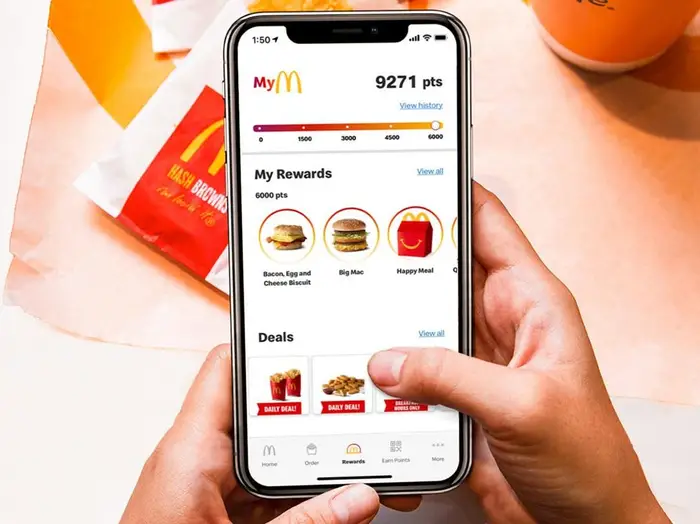
The McDonald’s App is an official mobile platform that lets you browse the full menu, order food, access deals, and choose between pickup or delivery depending on your location.
It connects directly to McDonald’s restaurants near you, making ordering faster than waiting in line. You can also unlock exclusive discounts that are not available in-store.
Step-by-Step Guide to Ordering Food on the McDonald’s App (Getting Started)
Before you place an order, you need to set up the app properly. Here’s how it works:
1. Download and Install the App
Go to the App Store or Google Play Store and download the McDonald’s App. After installation, open it.
2. Create an Account
Sign up using your email, Google account, or Apple ID. You may also log in as a guest in some regions, but creating an account gives you better access to deals and order tracking.
3. Enable Location Services
Turn on location so the app can show nearby restaurants and available delivery options. Without this, the app cannot function properly.
Step-by-Step Guide to Ordering Food on the McDonald’s App (Browsing the Menu)
Once you’re logged in, the next part of the Step-by-Step Guide to Ordering Food on the McDonald’s App is exploring the menu.
Also Read: Best Crypto Apps for Beginners in 2026 (Safe & Easy to Use)
1. Open the Menu Tab
You’ll see categories like:
- Burgers
- Chicken & Sandwiches
- Fries & Sides
- Drinks
- Desserts
2. Select Your Items
Tap on any item to view details. You can:
- Add extra cheese or sauces
- Remove ingredients
- Change meal size
- Upgrade fries or drinks
3. Check Promotions
The app often highlights limited-time deals. These can save you money if you’re flexible with what you eat.
Step-by-Step Guide to Ordering Food on the McDonald’s App (Customizing Your Order)
Customization is one of the most useful features in this Step-by-Step Guide to Ordering Food on the McDonald’s App.
When you select an item:
1. Modify Ingredients
You can remove pickles, onions, or sauces depending on your preference.
2. Upgrade Meals
Turn a standard burger into a full meal by adding fries and a drink.
3. Add Extras
Some locations allow extra cheese, bacon, or sauces for a small fee.
This part is important because it ensures you get exactly what you want before paying.
Step-by-Step Guide to Ordering Food on the McDonald’s App (Checkout Process)
Now comes the part where you place your order.
1. Go to Your Cart
After adding items, tap the cart icon to review everything.
2. Double-Check Your Order
Make sure:
- Items are correct
- Customizations are right
- Quantities are accurate
3. Apply Deals or Coupons
If you have offers, apply them before paying. This can reduce your total cost.
4. Choose Pickup or Delivery
You will usually see options like:
- Drive-thru pickup
- In-store pickup
- Delivery (available in selected areas)
Step-by-Step Guide to Ordering Food on the McDonald’s App (Payment Methods)
Payment is simple and secure.
Accepted payment methods may include:
- Debit or credit card
- Mobile money (in supported countries)
- Digital wallets (Apple Pay, Google Pay)
Once payment is successful, your order is confirmed instantly.
Step-by-Step Guide to Ordering Food on the McDonald’s App (Order Tracking)
After payment, you can track your order in real time.
You’ll see updates like:
- Order received
- Food being prepared
- Ready for pickup or out for delivery
This helps you know exactly when your food will arrive or be ready.
Step-by-Step Guide to Ordering Food on the McDonald’s App (Pickup or Delivery)
If You Choose Pickup:
Go to the restaurant, confirm your order code, and collect your food. Some locations have dedicated pickup counters.
If You Choose Delivery:
A delivery partner brings your order to your address. You can track their movement inside the app.
Tips to Get the Best Experience
To make the most out of the Step-by-Step Guide to Ordering Food on the McDonald’s App, here are a few practical tips:
- Always check deals before ordering
- Save your favorite meals for faster checkout
- Enable notifications for discounts
- Order during off-peak hours for faster service
- Double-check your address for delivery accuracy
Common Problems and Fixes
Even though the app is simple, users sometimes face issues.
1. App Not Loading
Try restarting your phone or updating the app.
2. Payment Failed
Check your card details or switch payment method.
3. Delivery Not Available
Some areas don’t support delivery. Switch to pickup instead.
Why People Prefer the McDonald’s App
There are several reasons users follow the Step-by-Step Guide to Ordering Food on the McDonald’s App instead of ordering in-store:
- Faster ordering process
- Exclusive discounts
- Easy customization
- No waiting in long queues
- Real-time order tracking
It’s basically built for convenience.